
iOS Setup
Install Radar on iOS
Install the iOS app, enable the Safari extension, then sign in to your account.
Setup
Enable the Safari extension
Follow these steps in order. The screenshots are numbered to match the instructions.
-
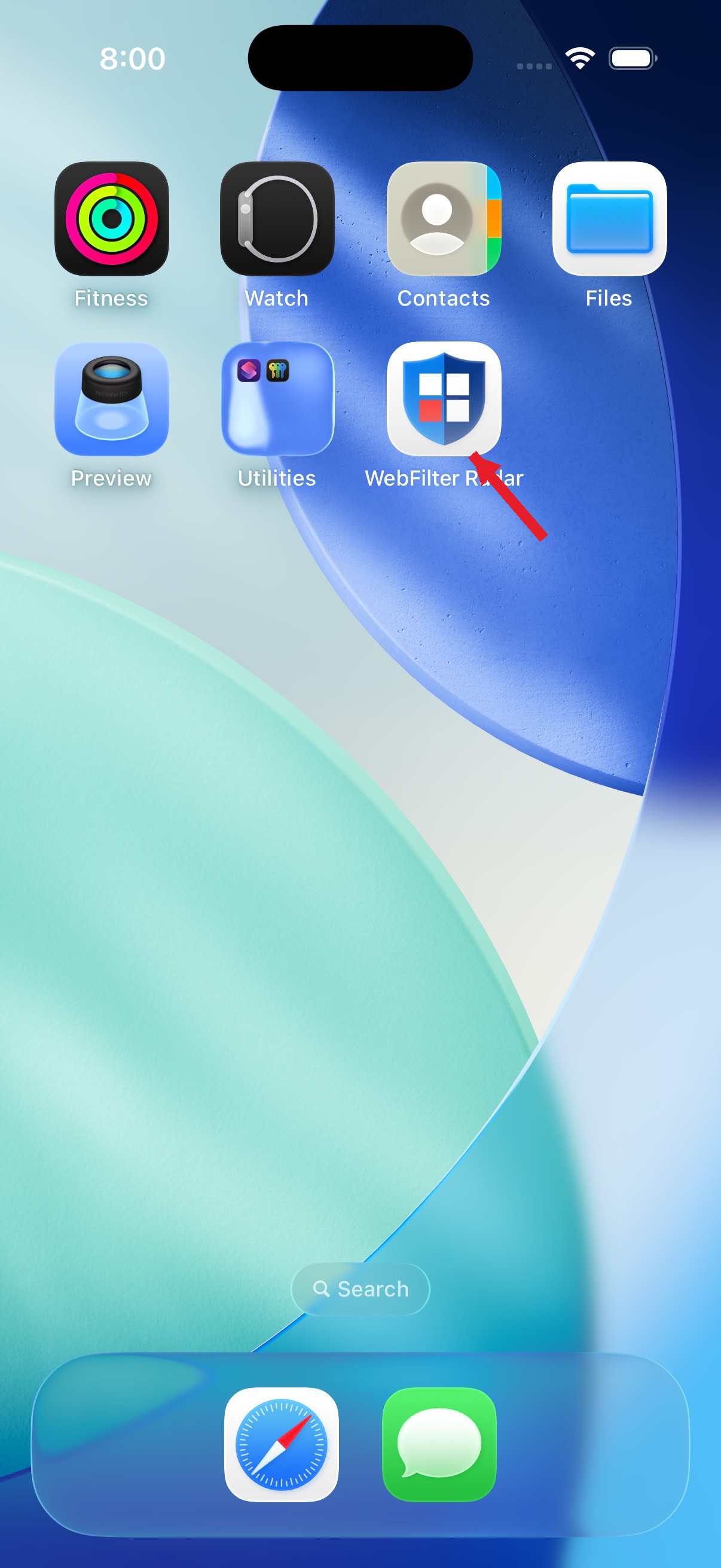
-
02
Open Settings
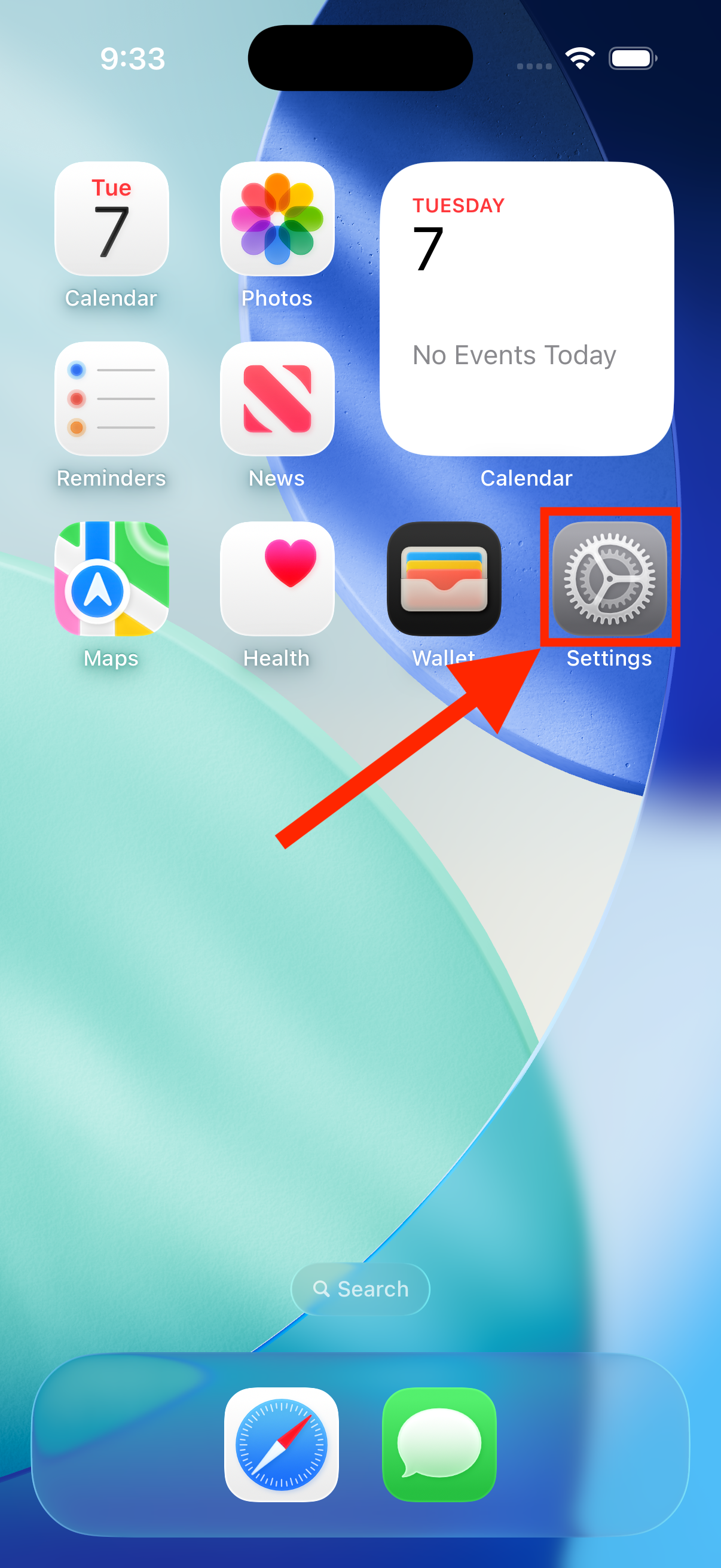
-
03
Open Apps
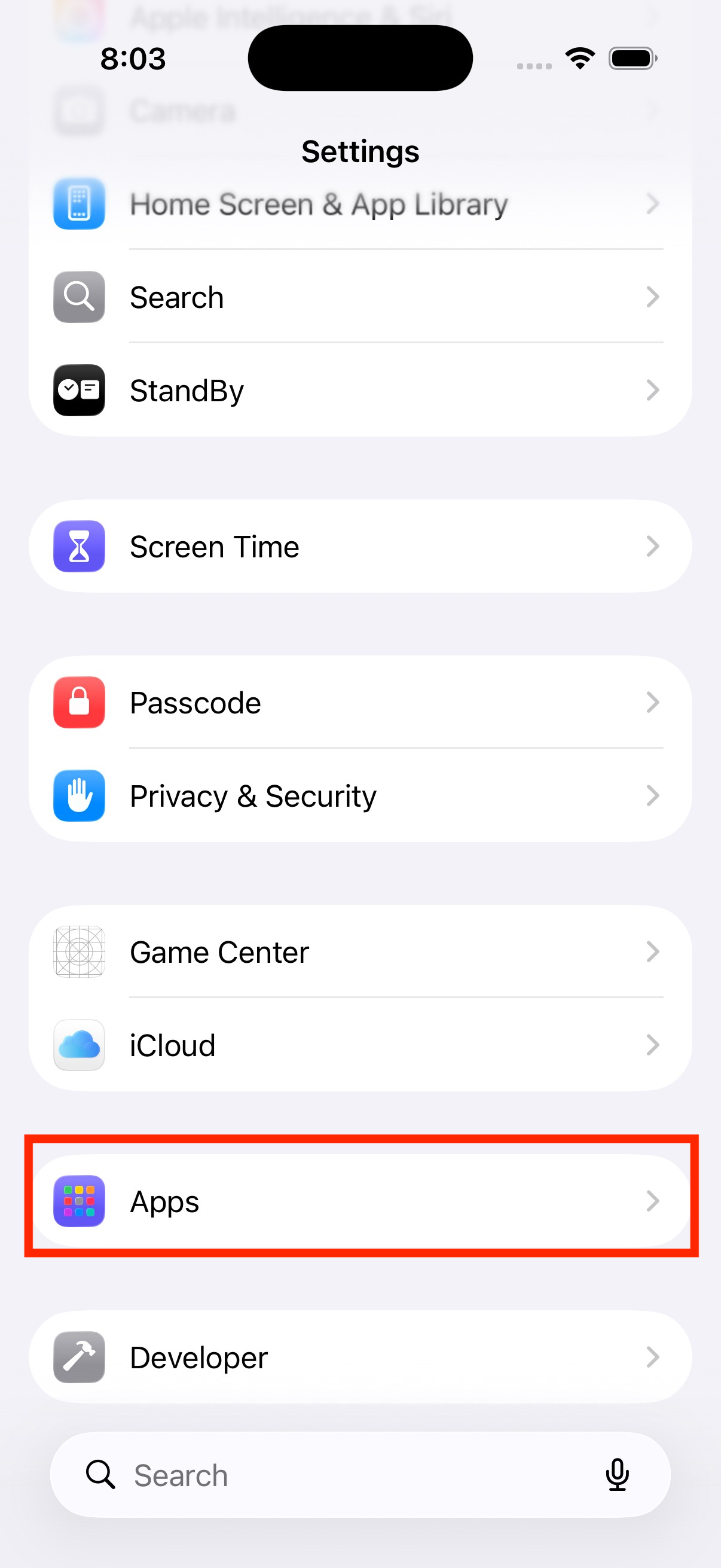
-
04
Open Safari
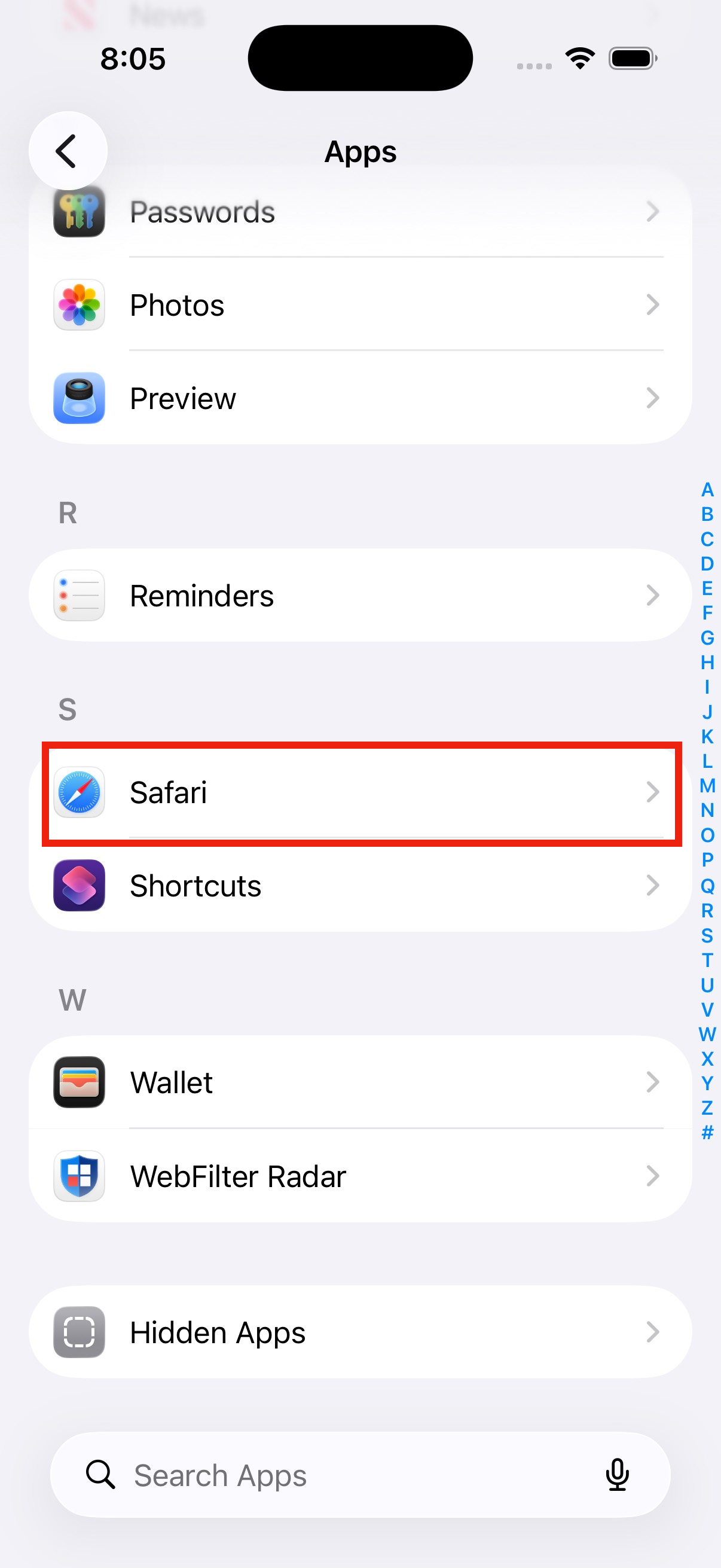
-
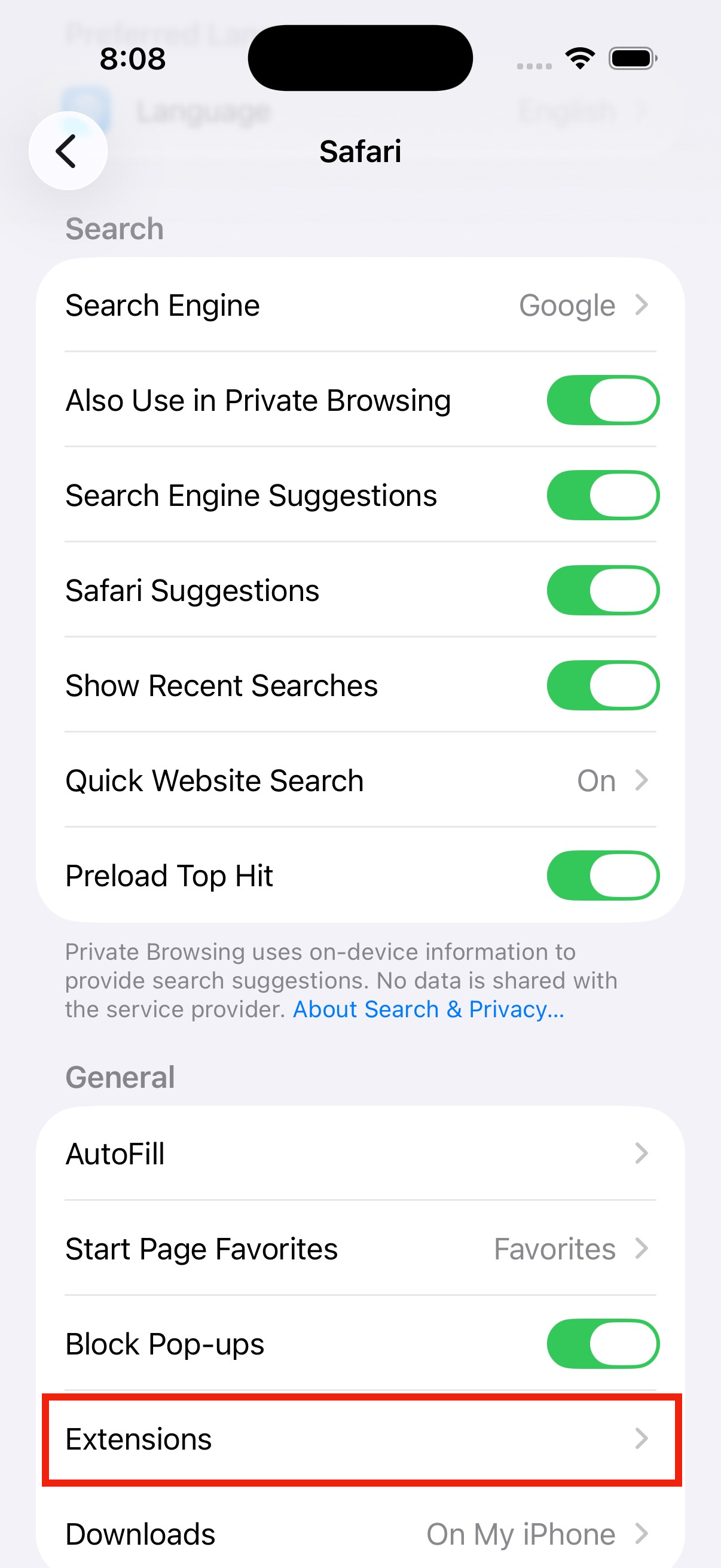
05
Open Extensions
-
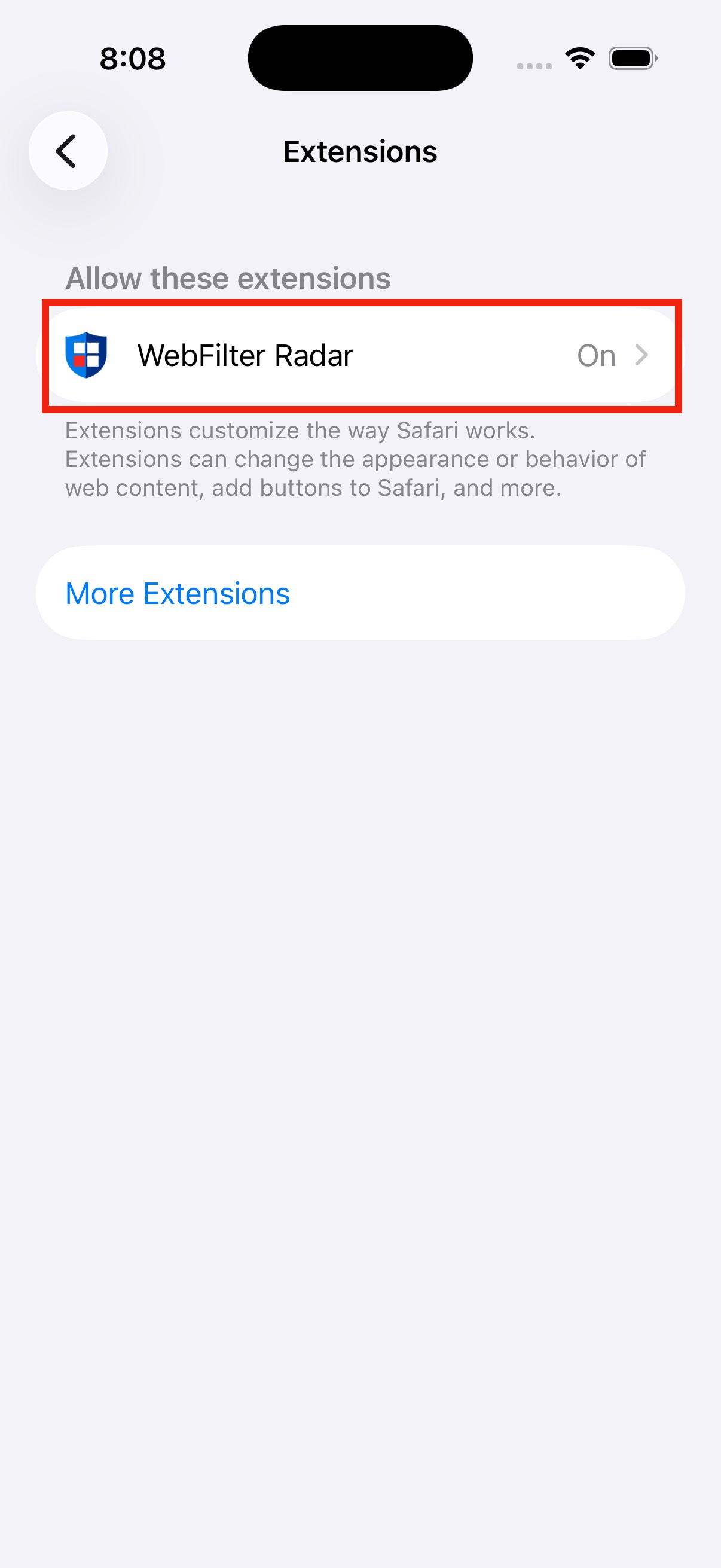
06
Open WebFilter Radar
-
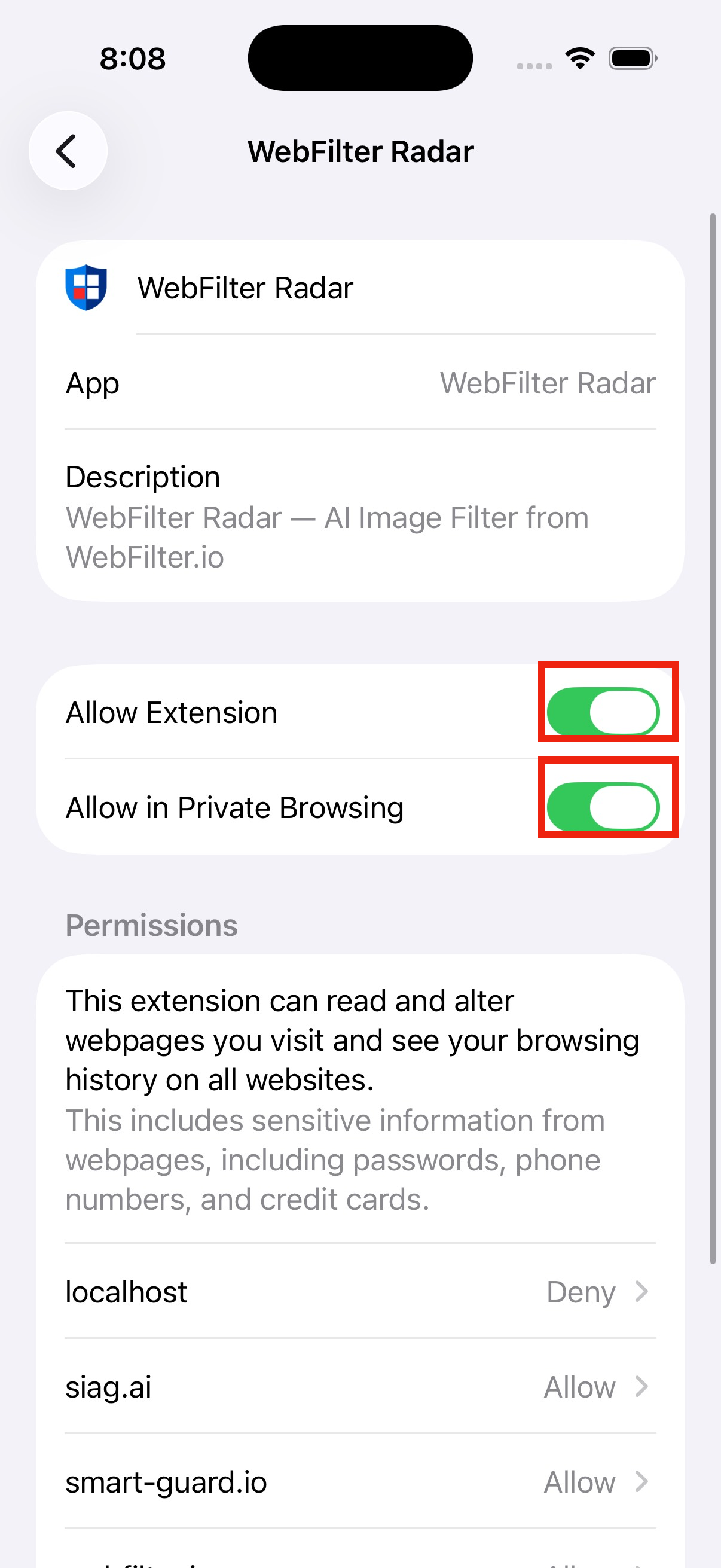
07
Enable both switches
Turn on Allow Extension and Allow in Private Browsing.
-
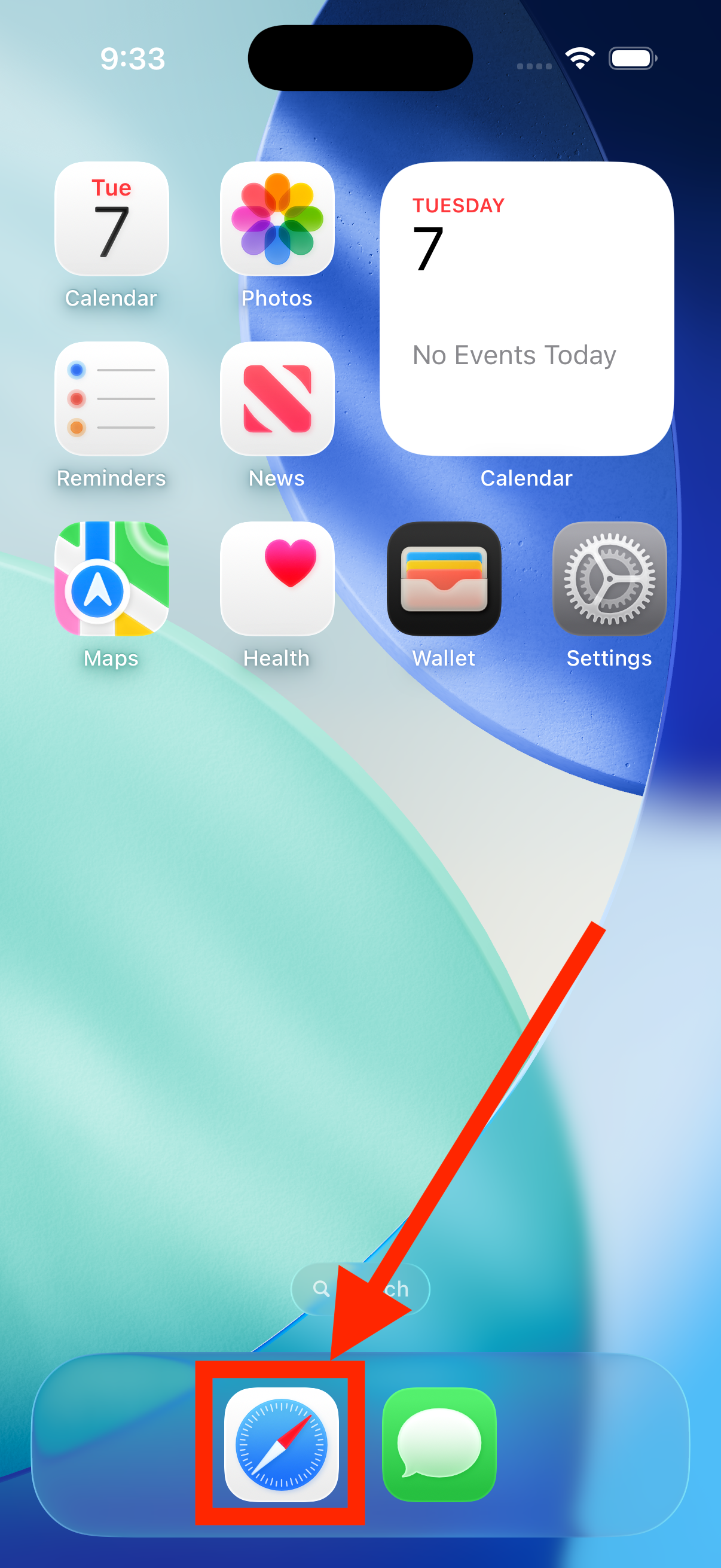
08
Open Safari
-
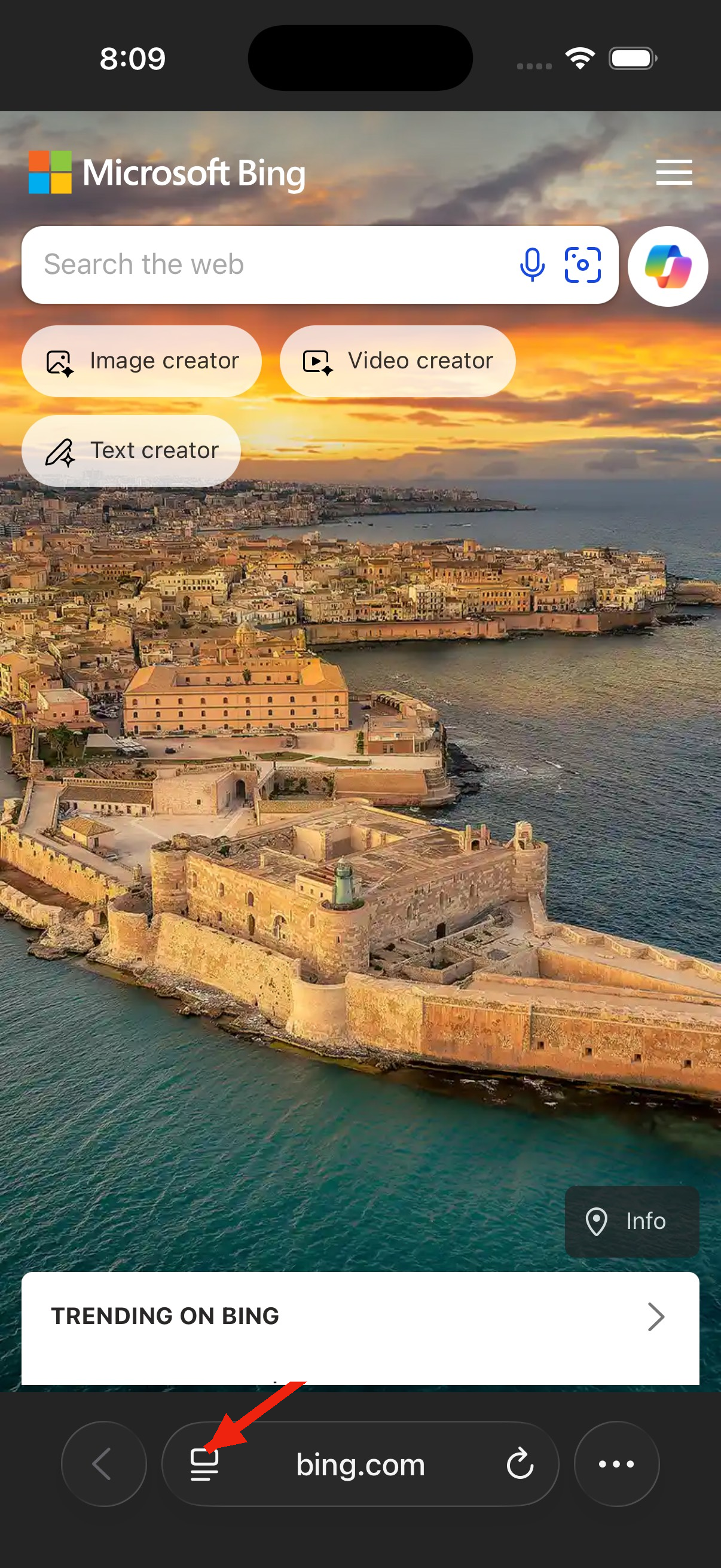
09
Open the page menu
-
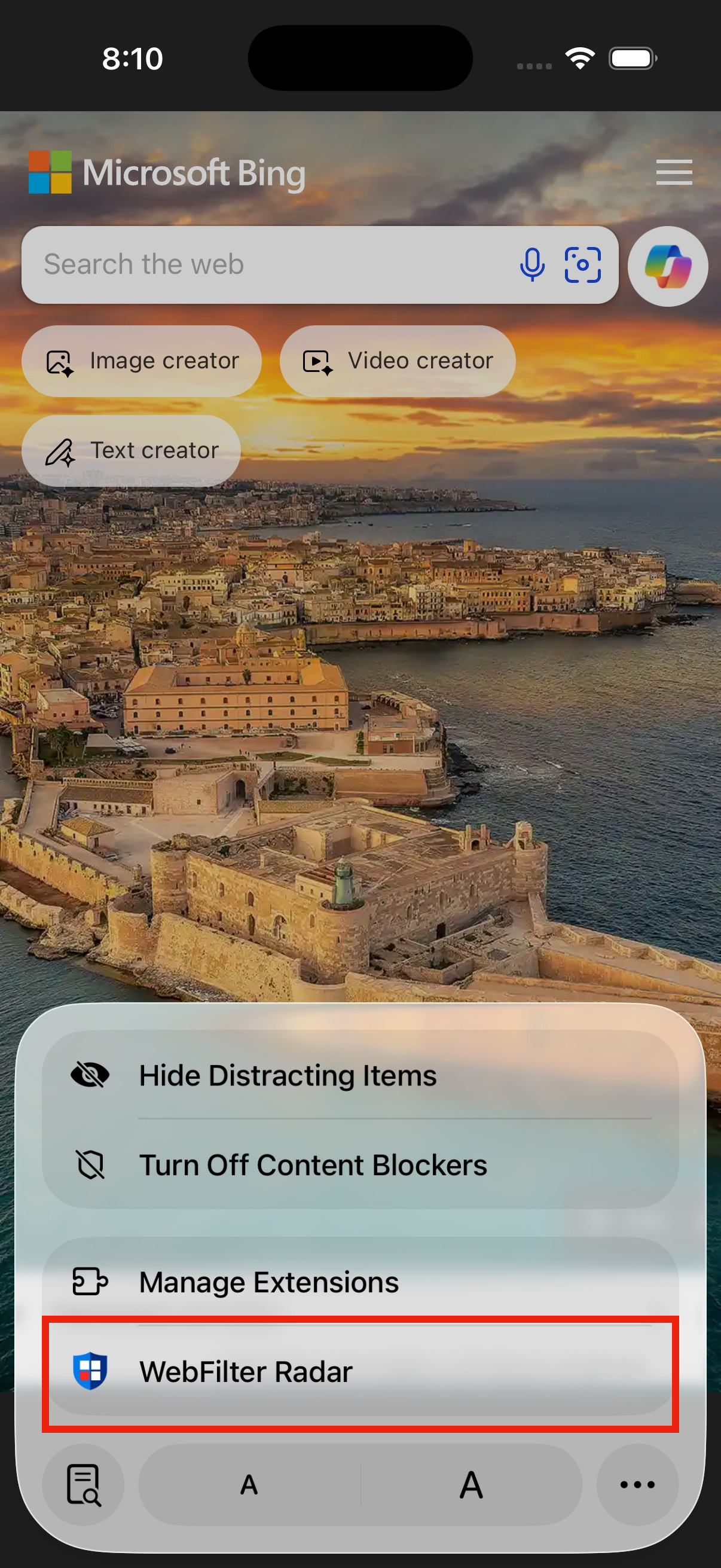
10
Open WebFilter Radar
-
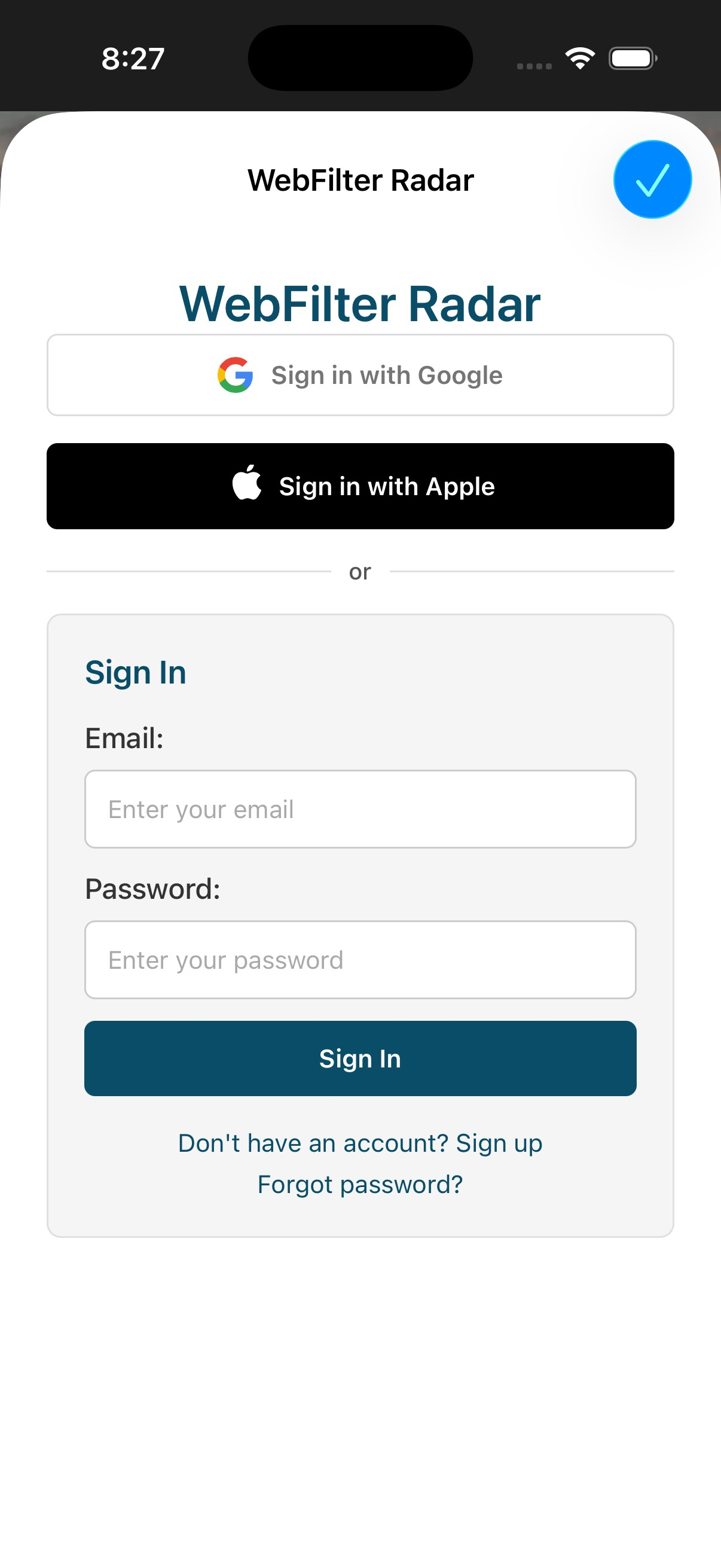
11
Sign in to your account
-
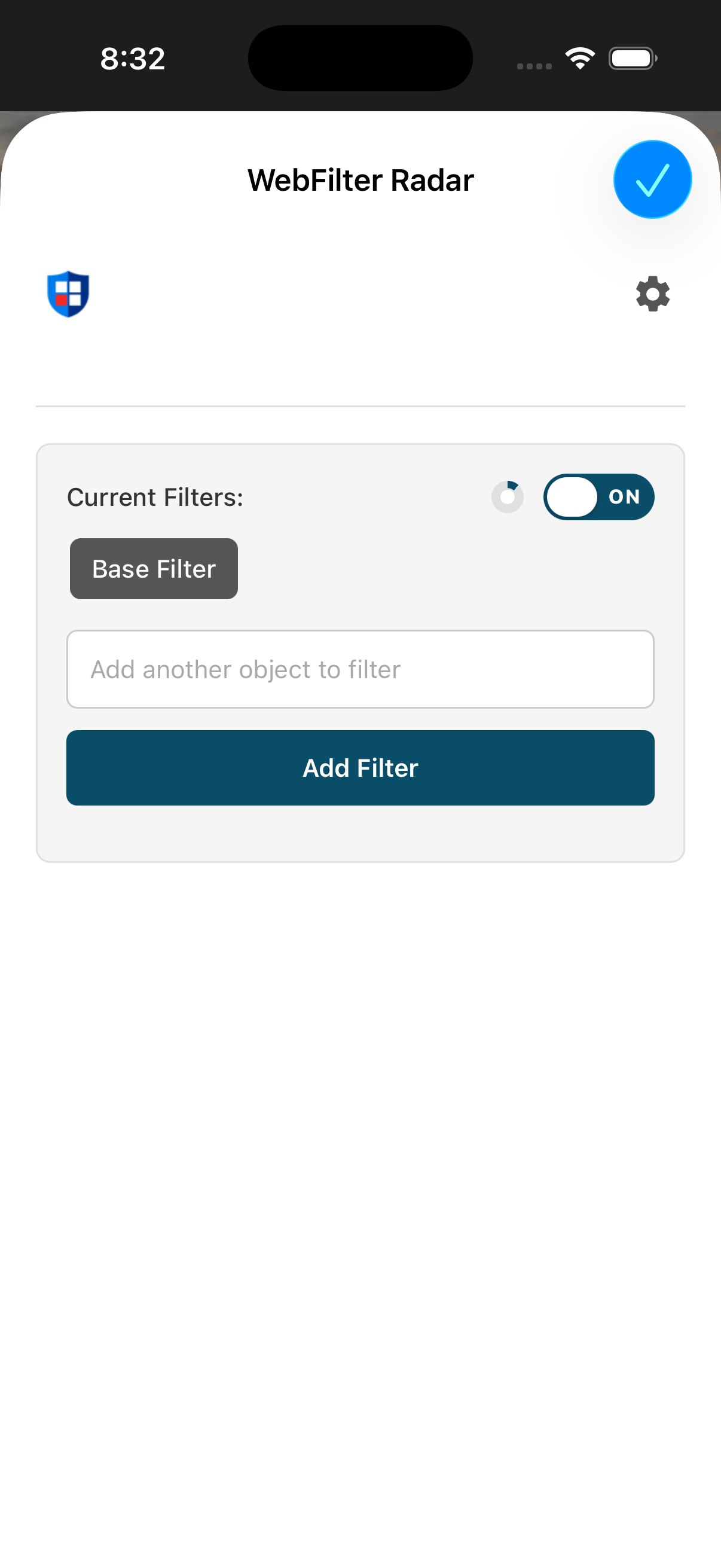
12
Set your filters
Keep browsing in Safari after your filters are set.
WebFilter Radar