
Android Setup
Install Radar on Android
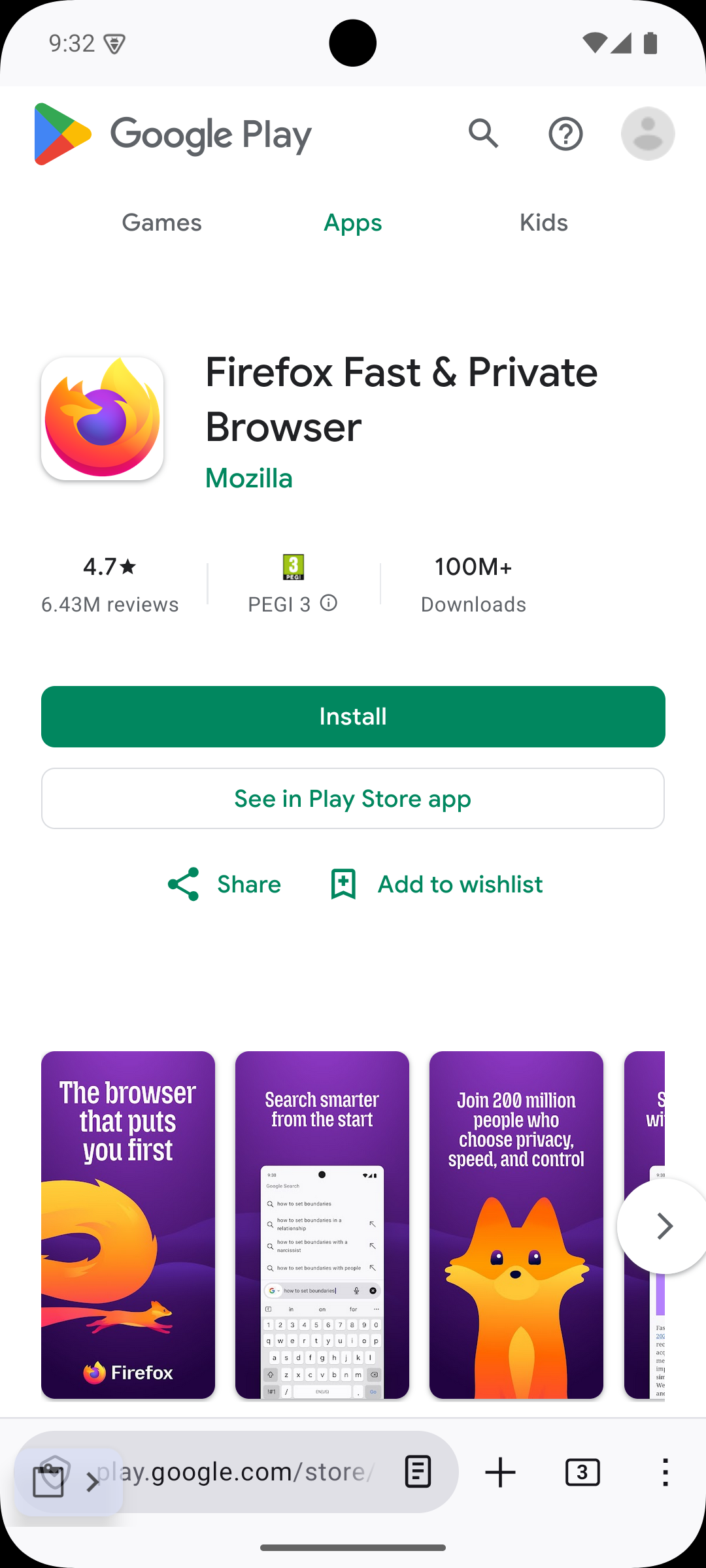
Chrome on Android does not support extensions. Install Firefox, add Radar, then sign in to your account.
Open the Radar companion app The Android companion distribution link will be added when it is published.
Install
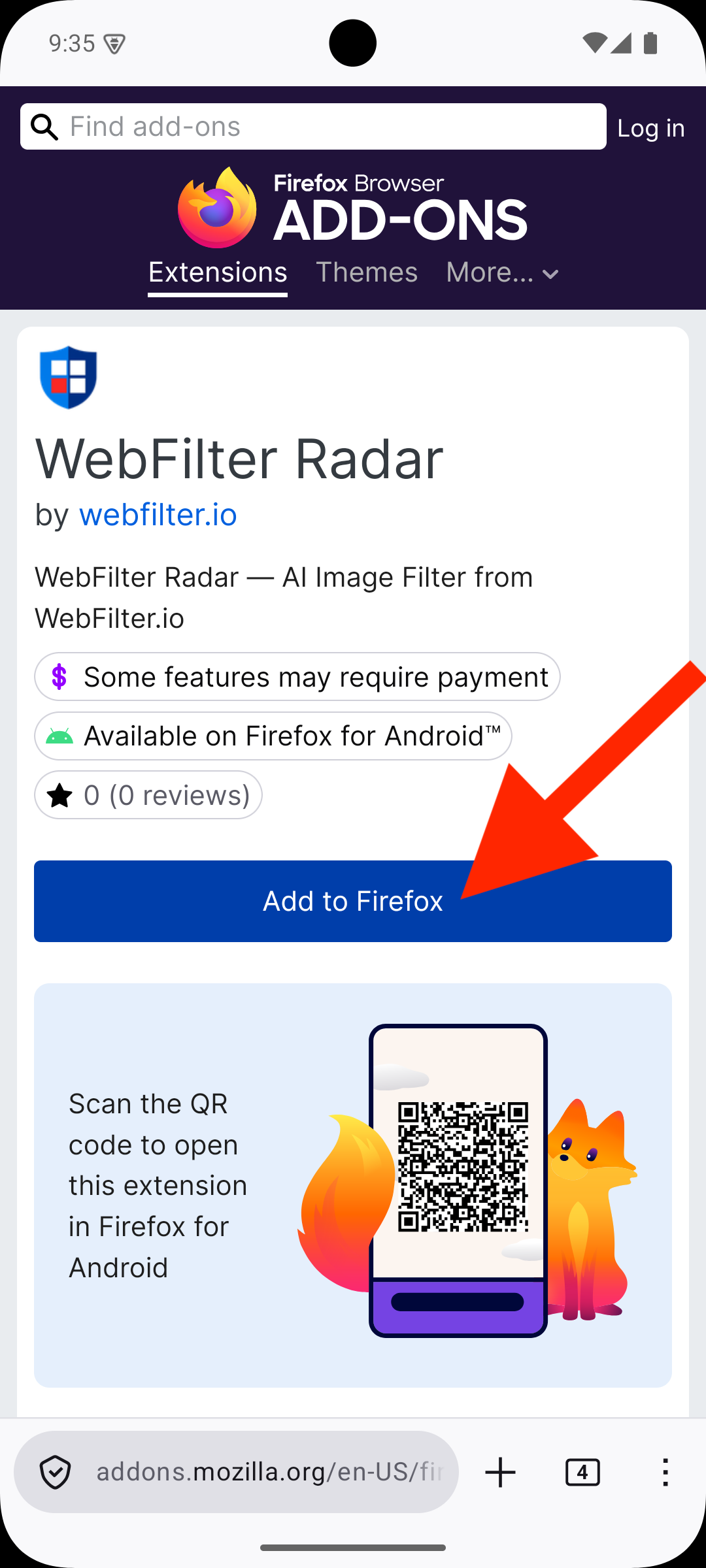
Install the extension
Follow these steps in order. The screenshots are numbered to match the instructions.
-
-
-
03
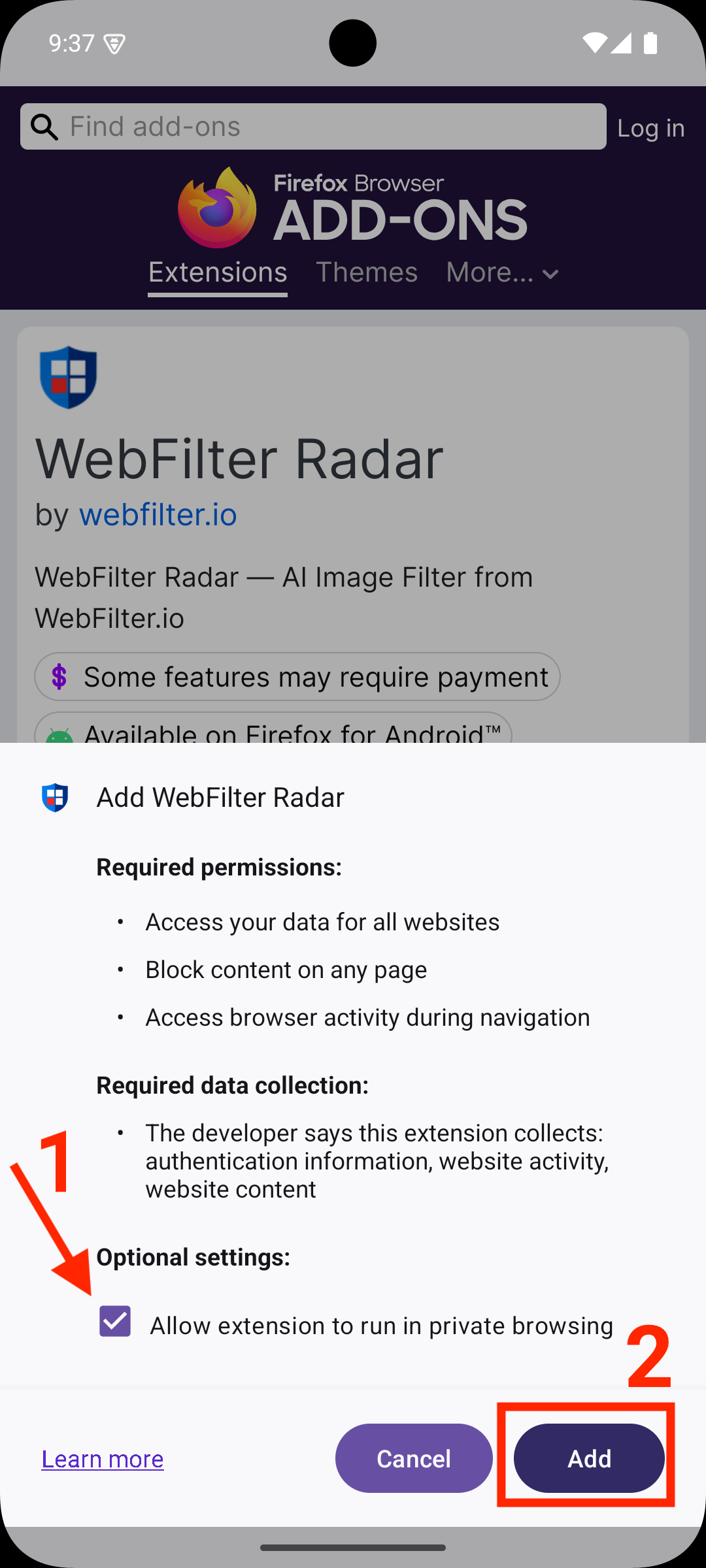
Approve the installation
Allow private browsing access so Radar can cover private tabs too.
-
04
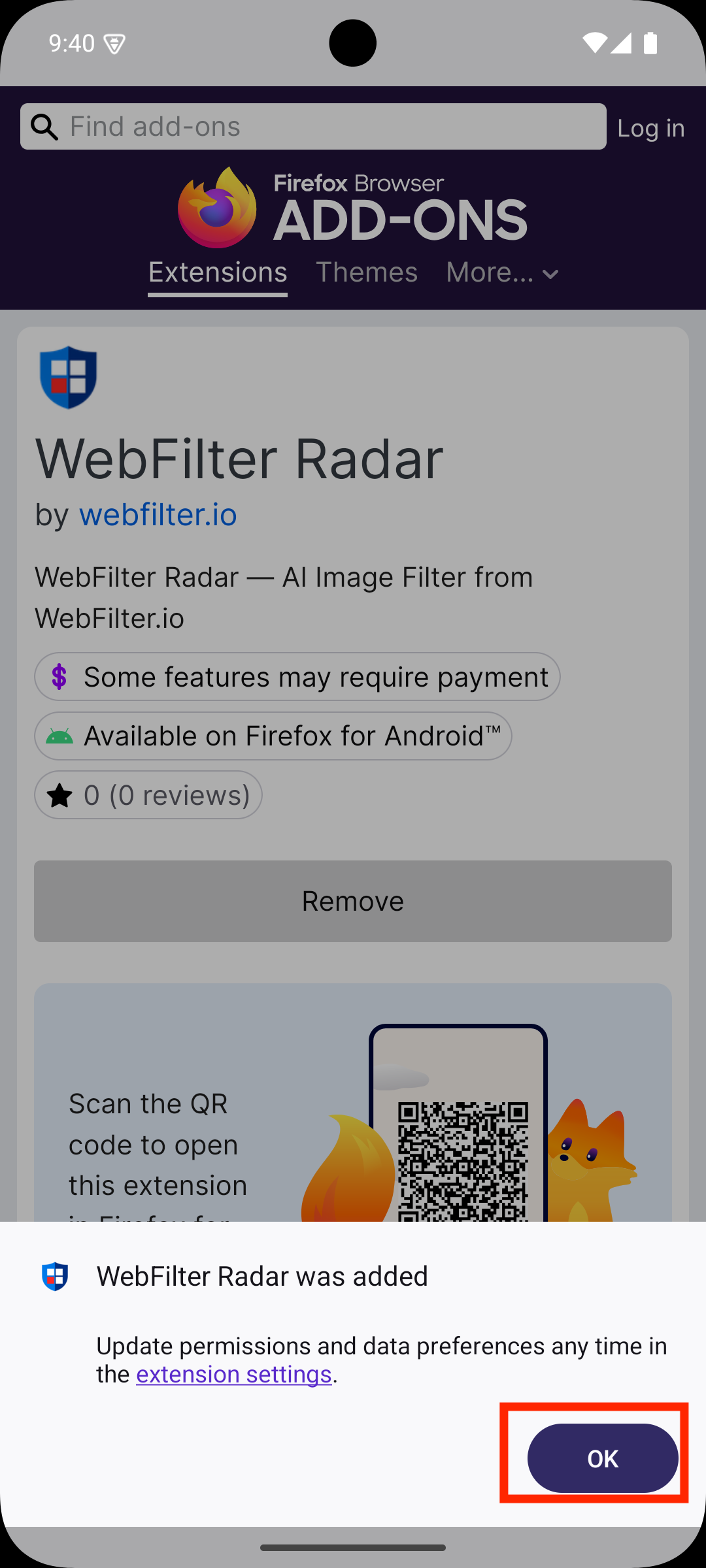
Close the confirmation
-
05
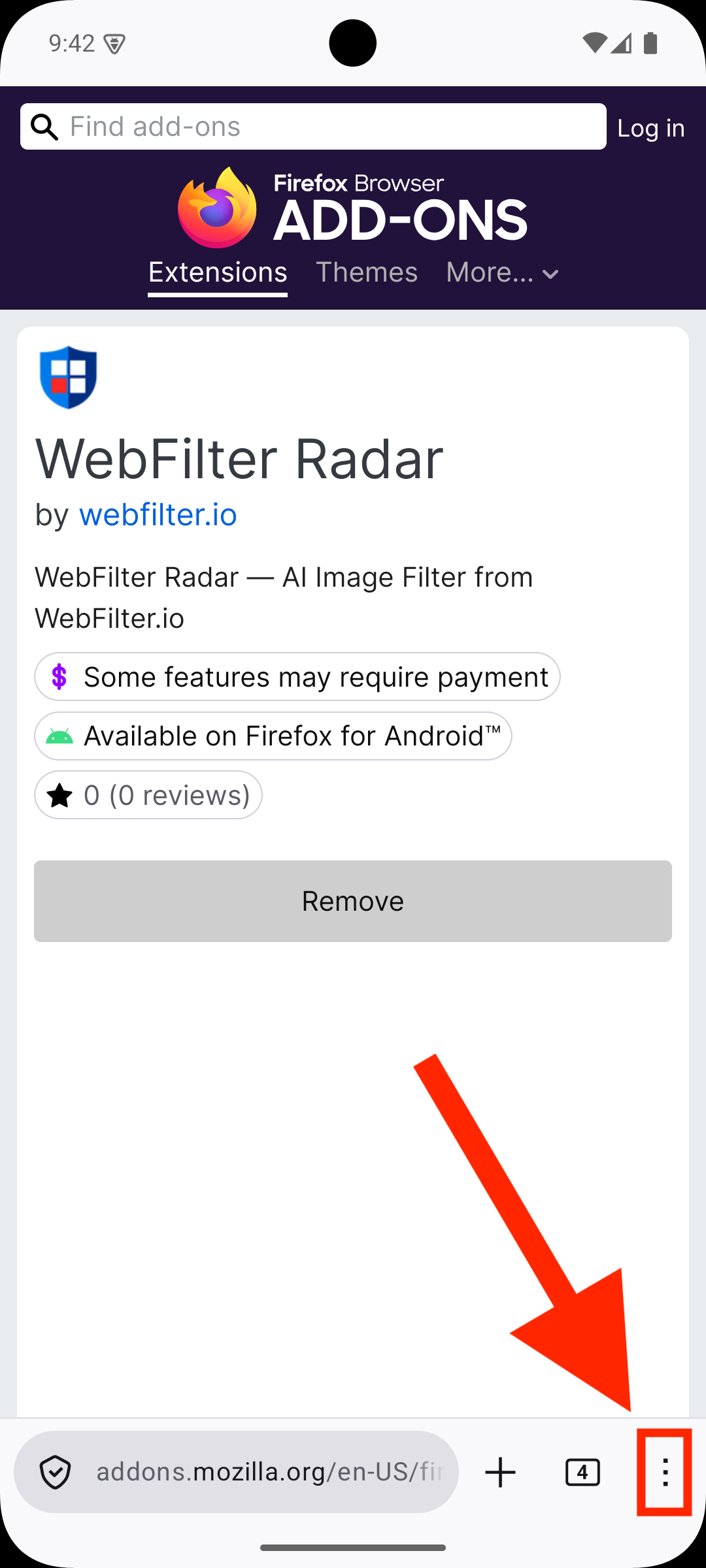
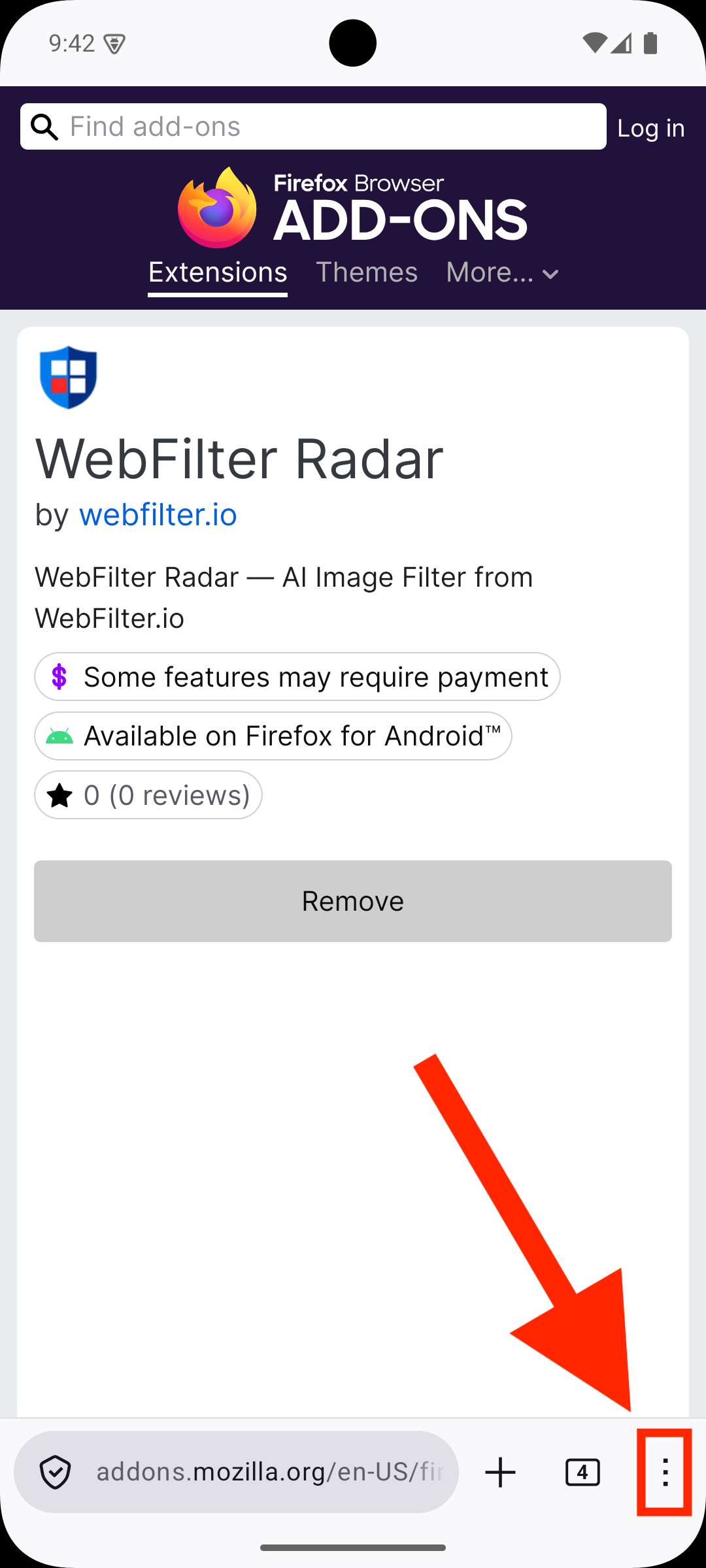
Open the Firefox menu
The menu button is the three-dot icon at the bottom of the screen.
-
06
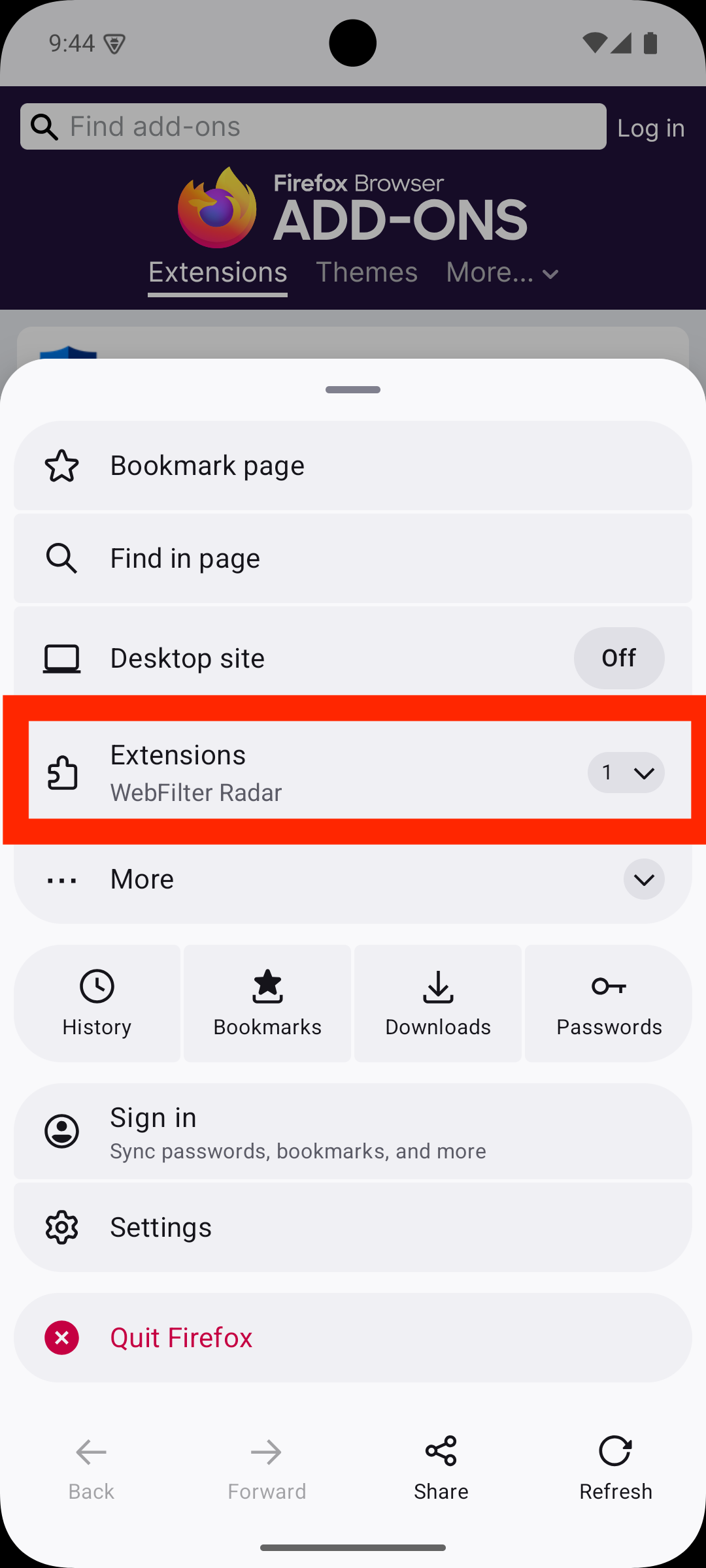
Open Extensions
-
07
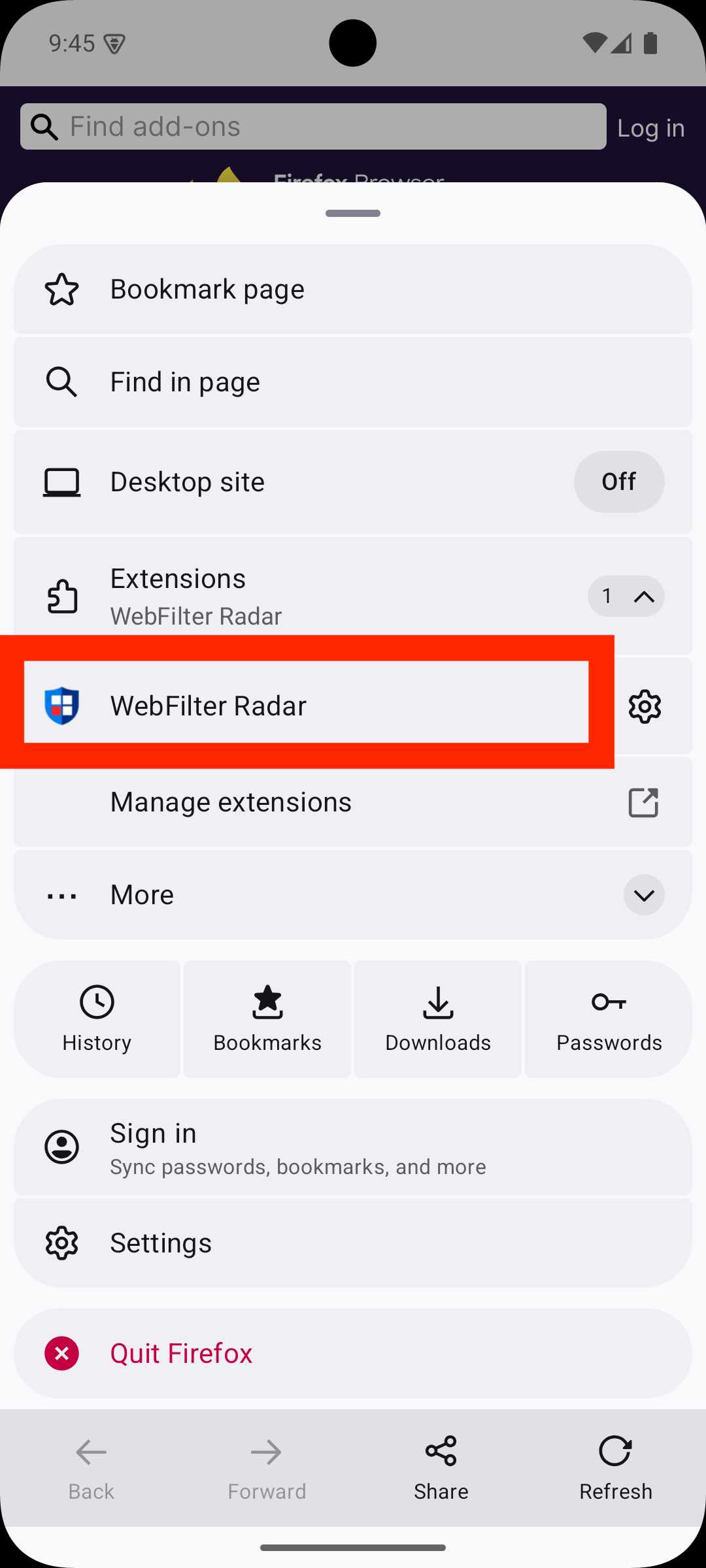
Open WebFilter Radar
-
08
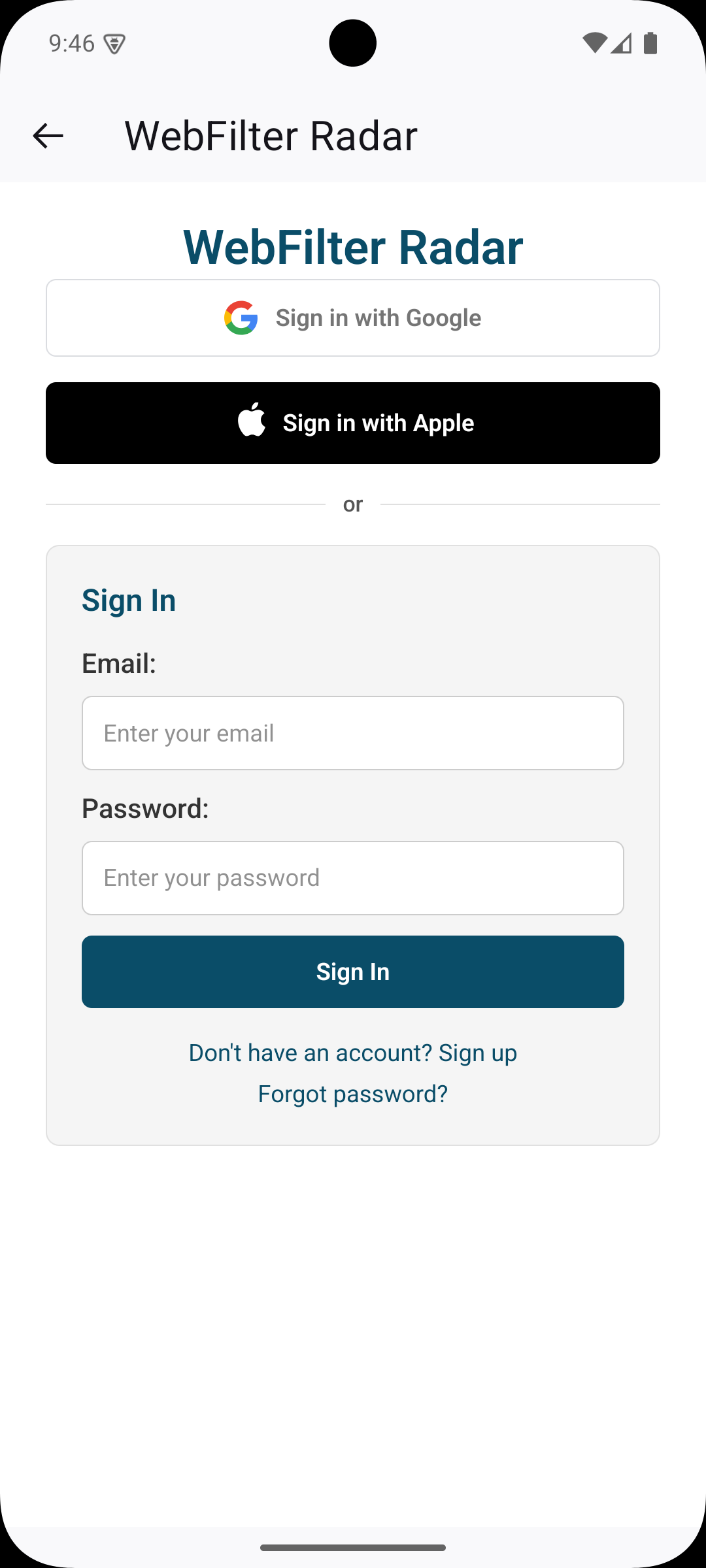
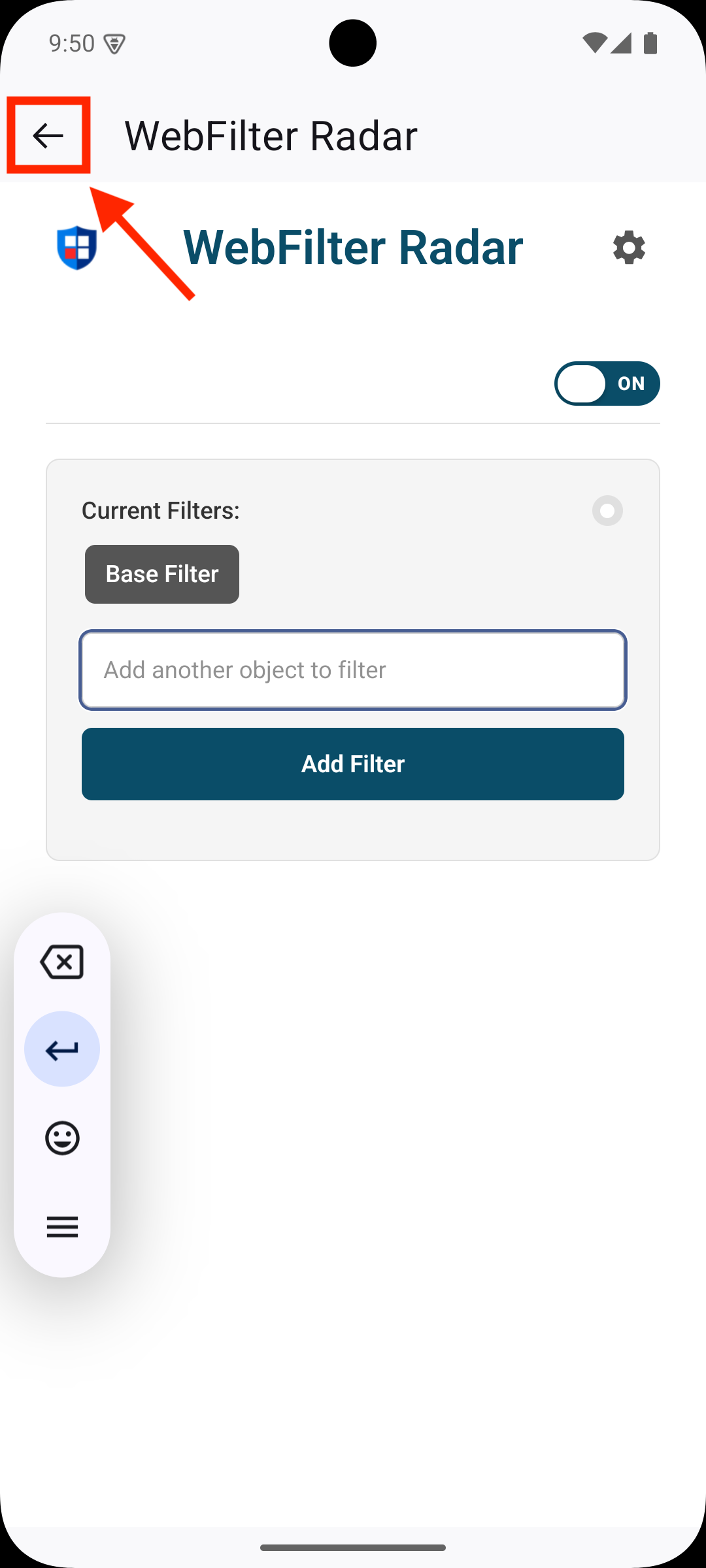
Sign in to your account
-
09
Confirm you are signed in
Close the extension window, then keep browsing in Firefox.
Recommended
Make Firefox your default browser
This part is optional, but it helps make sure normal browsing opens in Firefox with Radar enabled.
-
10
Open the Firefox menu again
-
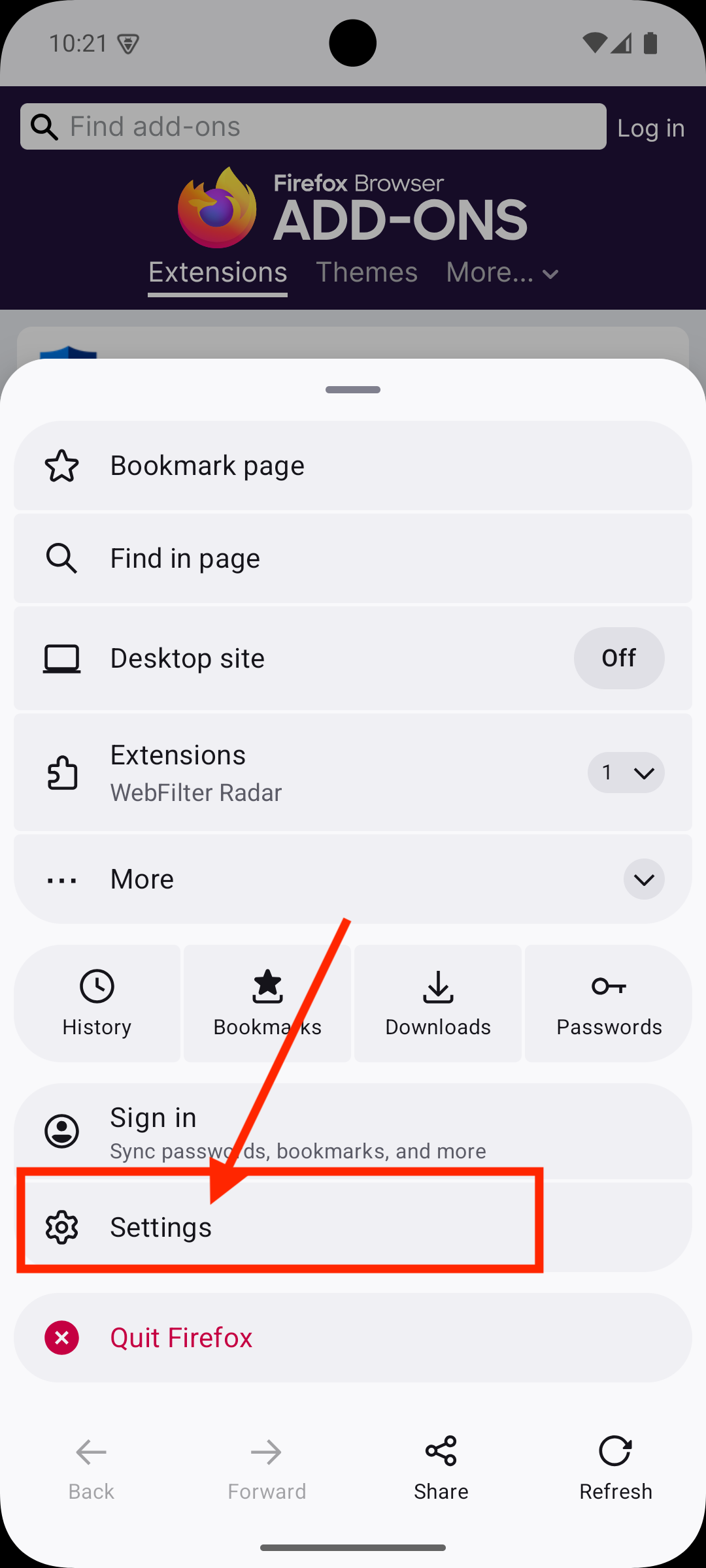
11
Open Settings
-
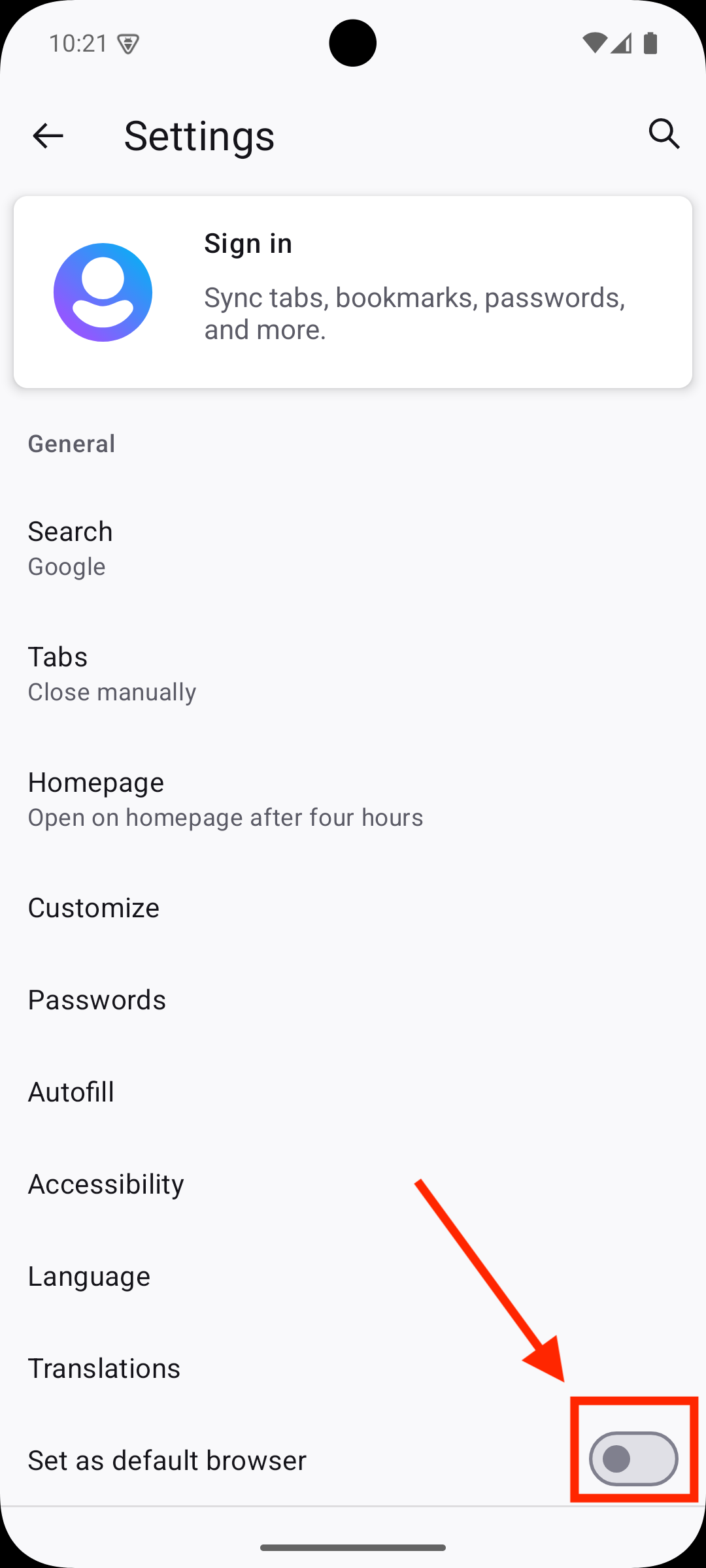
12
Enable "Set as default browser"
-
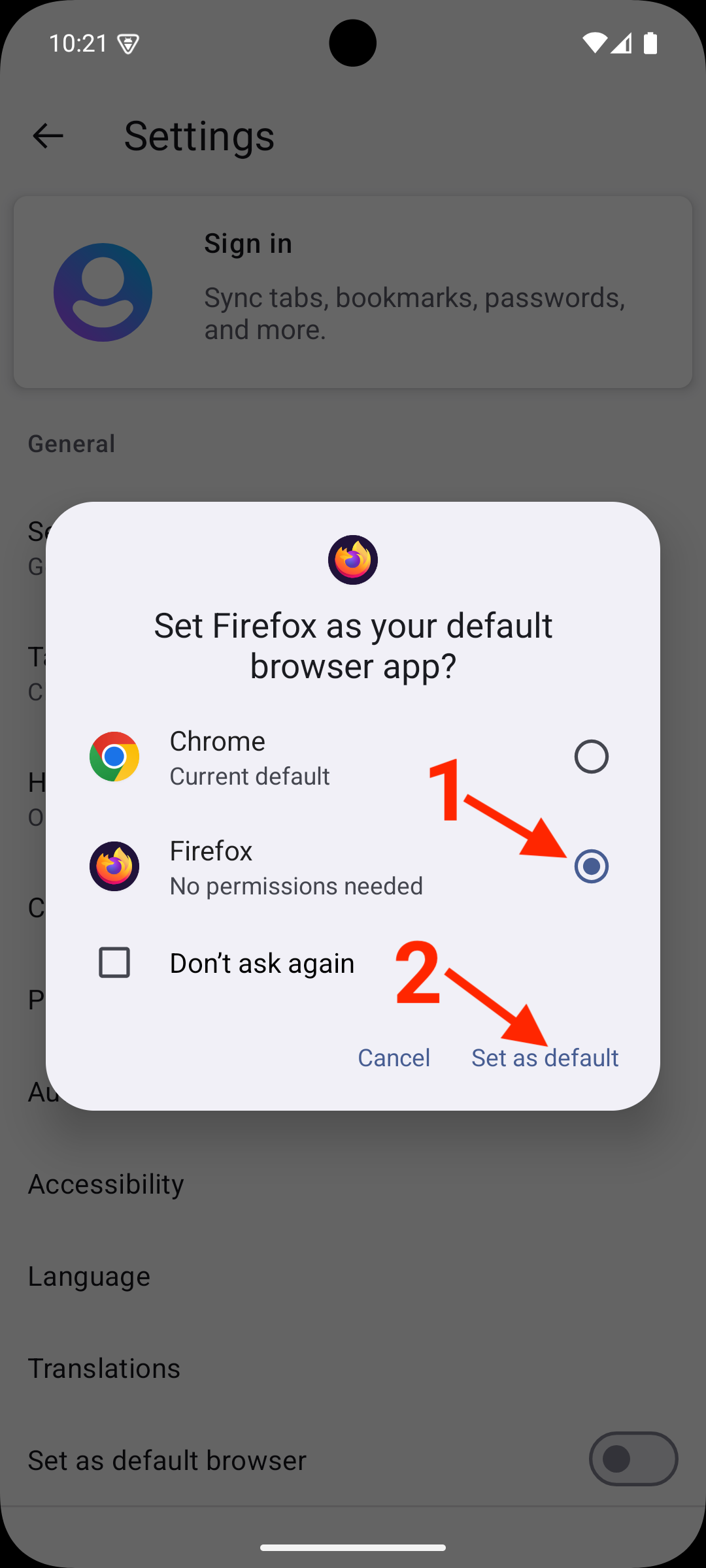
13
Choose Firefox as default
After selecting Firefox, press "Set as default".
-
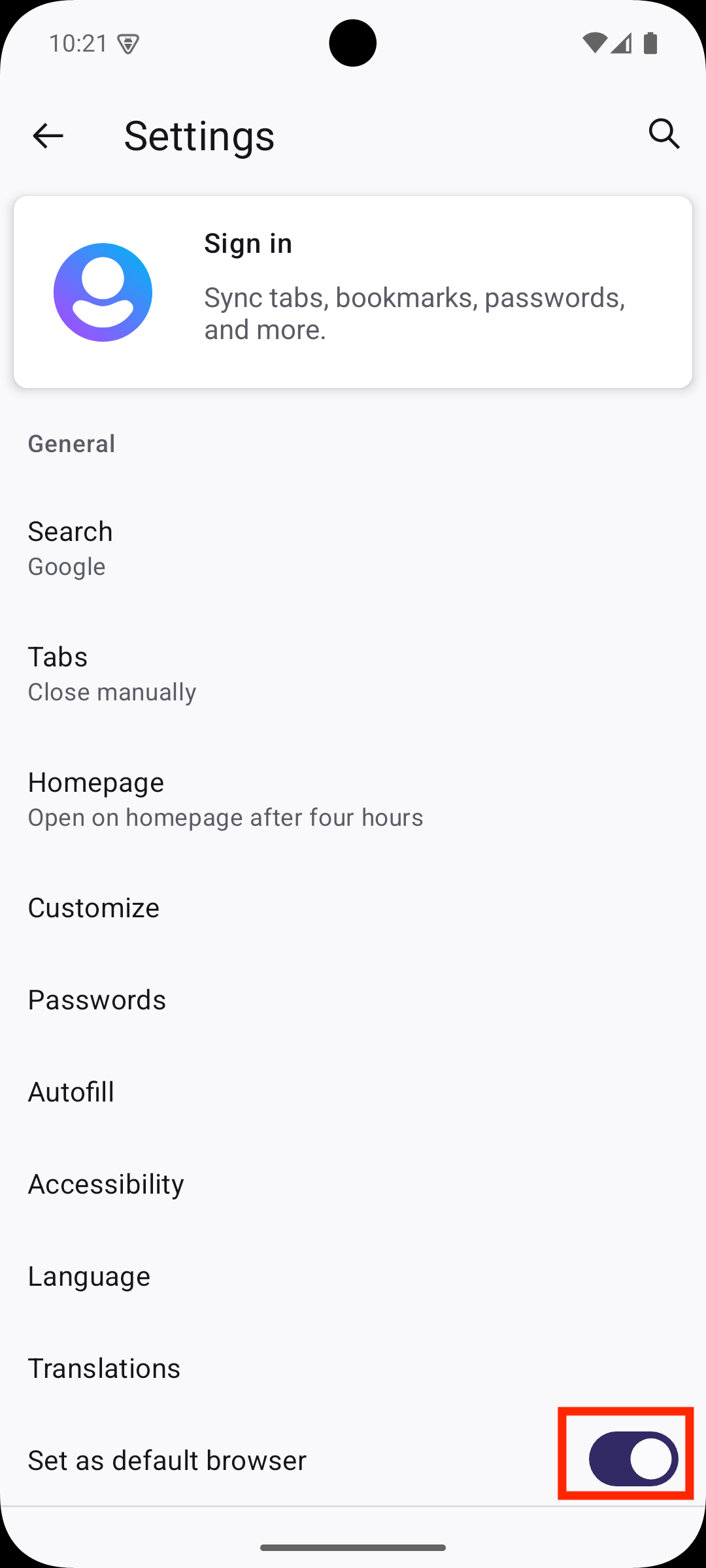
14
Confirm the switch is enabled
WebFilter Radar